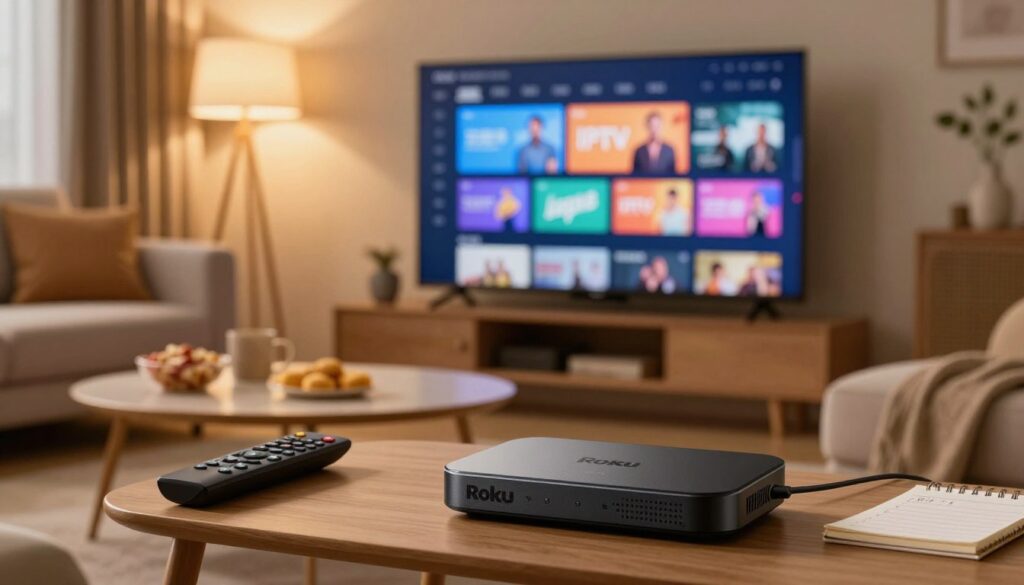
Modern viewers are constantly looking for better ways to access their favorite shows. Using iptv on Roku has become a popular choice for those who want to simplify their home setup. This method allows you to enjoy a vast library of digital entertainment without needing a traditional cable box.
Many people find that they can stream live TV with just a few simple steps. You do not need to be a tech expert to get started today. Our guide is designed to help beginners navigate the process smoothly and avoid common technical hurdles.
By following these clear instructions, you will transform your viewing experience in minutes. Get ready to unlock a world of content right from your living room couch.
Key Takeaways
- Learn how to set up your device for live streaming.
- Discover the benefits of moving away from traditional cable.
- Follow simple steps designed for beginners.
- Enhance your home media experience with ease.
- Access a wider variety of global channels instantly.
Understanding the Compatibility of IPTV on Roku
Understanding how your Roku device handles third-party software is essential for a smooth streaming experience. Unlike open-source platforms, the Roku operating system is a closed ecosystem designed to prioritize stability and ease of use. This focus on a controlled environment means that the platform does not natively support many third-party IPTV applications found on other devices.

Because of these technical boundaries, you cannot simply download every streaming app directly from the official channel store. This limitation is why many users must rely on alternative methods to access their preferred content. By learning how to work within these constraints, you can successfully configure your setup for optimal performance.
To get the most out of your streaming hardware, it is helpful to recognize the primary reasons for these limitations:
- Security Protocols: Roku maintains strict control over software to prevent malicious code.
- Performance Standards: A closed system ensures that the Roku device remains fast and responsive.
- Content Licensing: The platform prioritizes verified services to comply with regional copyright laws.
Successfully running iptv on Roku requires a bit of creativity and patience. Once you understand these technical boundaries, you will find that accessing your favorite channels is entirely possible through clever workarounds. Mastering these configurations is the first step toward building a reliable and high-quality home entertainment system.
Prerequisites for Setting Up IPTV Services
A successful IPTV setup begins long before you actually start watching your favorite channels. Taking the time to organize your equipment ensures that your transition to digital television is smooth and stress-free. You will need a valid subscription from a reputable IPTV service to access content legally and reliably.

Once you have your subscription, the next priority is your internet connection. To stream live TV without constant buffering, a high-speed and stable network is absolutely essential. We recommend testing your connection speed to ensure it meets the minimum requirements for high-definition playback.
Preparation is the key to avoiding common configuration errors that often plague new users. By verifying your IPTV service credentials and network stability beforehand, you save yourself from troubleshooting headaches later. This proactive approach allows you to focus entirely on enjoying your media library.
Finally, ensure your Roku device is updated to the latest firmware version. A clean IPTV setup relies on hardware that is fully compatible with modern streaming protocols. Following these simple steps will provide a solid foundation for your home entertainment system.
How to Install IPTV on Roku Using Screen Mirroring
You can easily bypass app limitations by using the built-in screen mirroring features on your hardware. This method serves as a highly effective workaround for users who want to enjoy content without needing a native application installed directly on the system.

Enabling Screen Mirroring on Your Roku Device
To begin your IPTV setup, you must first ensure your television is ready to receive a signal. Navigate to the “Settings” menu on your home screen using your remote control.
Select the “System” option and look for the “Screen mirroring” tab. Make sure to set this to “Prompt” or “Always allow” so your Roku device can detect incoming connections from your mobile hardware.
Connecting Your Android Device to Roku
Before you start, verify that both your phone and your television are connected to the exact same Wi-Fi network. If they are on different networks, the devices will not be able to communicate with each other.
Open the “Settings” or “Quick Settings” panel on your Android phone. Look for an icon labeled “Cast,” “Smart View,” or “Screen Mirroring” to initiate the search for available displays.
Select your television from the list of available devices that appears on your screen. Once the connection is established, your phone screen will be mirrored directly onto your television.
Launching the IPTV App via Mirroring
Now that your devices are linked, simply open your preferred streaming application on your Android phone. You can navigate through your channels and watch your favorite content as it appears on the larger display.
Keep in mind that maintaining a stable internet connection is vital for a smooth experience. If you notice any lag, try moving your router closer to your devices to improve signal strength.
Utilizing the Roku Media Player for Local IPTV Files
The Roku media player offers a surprisingly robust way to manage your local content files. While many users rely on official apps, this built-in tool provides a flexible alternative for those who prefer to curate their own viewing experience. By understanding how to organize your data, you can turn your device into a personalized entertainment hub.
Preparing Your M3U Playlist Files
To get started, you must ensure your M3U playlist is formatted correctly. This file acts as a roadmap for your device, telling it exactly where to find your streams. Consistency is key when creating these lists to avoid errors during the loading process.
Make sure your file uses standard UTF-8 encoding. You should also verify that every URL within the list is active and points directly to a valid stream. Keeping your list organized with clear titles will make navigation much smoother once you import it.
Configuring the Roku Media Player Interface
Once your file is ready, you need to load it into the Roku media player. Simply connect a USB drive containing your file to your device or access it via a local network share. The interface will automatically scan for compatible media files once you launch the application.
Navigate to the “Videos” or “Folders” tab within the app to locate your file. If the system does not detect it immediately, ensure that your storage device is formatted as FAT32 or NTFS. Proper configuration ensures that your channels appear in the correct order and are ready for instant playback.
Troubleshooting Common Playback Issues
Even with a perfect setup, you might occasionally encounter playback hurdles. If a stream fails to load, the most common culprit is an unsupported file format or a broken network path. Always double-check that your M3U playlist links are still active, as these can expire over time.
If the Roku media player continues to struggle, try restarting your device to clear the cache. Patience is important when troubleshooting, as minor network fluctuations often cause temporary connection drops. By maintaining your files regularly, you can enjoy a seamless and reliable streaming experience.
Configuring Third-Party IPTV Players via Private Channels
Exploring the world of private channels can significantly broaden your streaming horizons. These unique additions allow you to access content that is not typically found in the official store. By leveraging these tools, you can transform your device into a more versatile media hub.
Understanding Roku Private Channel Limitations
It is important to recognize that these channels operate under specific platform restrictions. Because they are not vetted by the official store, they may lack the stability or support found in standard applications. Always exercise caution when adding third-party software to your system to ensure your device remains secure.
Furthermore, these channels can be removed by the platform at any time without prior notice. This means your favorite IPTV player might disappear if it violates updated terms of service. Keeping your expectations realistic is key to a smooth experience.
Adding Channels Using Access Codes
To add these custom options, you must use the official web portal rather than the device interface itself. You will need a specific access code provided by the developer of the player you wish to install. Once you log into your account on a web browser, navigate to the “Add Channel” section and enter the code provided.
After submitting the code, the channel will be added to your account. It may take up to 24 hours for the new icon to appear on your home screen. You can force an update by checking for system updates in your device settings if you prefer not to wait.
Managing Your Installed Private Channels
Once your new player is installed, you can easily organize it using your Roku remote. Simply highlight the channel icon and press the asterisk (*) button to access the options menu. From here, you can move the channel to a more convenient location on your home screen or remove it entirely if you no longer use it.
Maintaining a clean interface helps you find your preferred content faster. Use your Roku remote to group similar apps together, ensuring that your most-watched IPTV services are always within reach.
| Feature | Standard Channels | Private Channels |
|---|---|---|
| Vetting Process | Strictly Reviewed | Unverified |
| Installation | Official Store | Access Codes |
| Stability | High | Variable |
| Support | Official | Community-based |
Optimizing Your Network for Seamless IPTV Streaming
A robust network environment is the secret to unlocking the full potential of your streaming device. When you want to enjoy high-definition content, your home setup must be ready to handle the data flow. Optimizing your connection ensures that you spend more time watching and less time waiting for buffers to clear.
Testing Your Internet Connection Speed
Before you begin, you should verify that your internet speed meets the minimum requirements for your chosen content. Most high-definition streams require a consistent download speed of at least 10 to 25 Mbps. You can easily check your current performance by using free online speed test tools on your smartphone or computer.
If your results are lower than expected, try restarting your modem or router to refresh the signal. Consistent speeds are vital for maintaining high streaming quality throughout your entire viewing session.
Reducing Network Congestion for Better Quality
Too many devices connected to your Wi-Fi at once can lead to significant slowdowns. When multiple people are gaming or downloading large files, your media player may struggle to receive the data it needs. You can improve your streaming quality by disconnecting devices that are not currently in use.
Additionally, try to keep your router away from other electronic appliances that might cause interference. Placing your router in a central, open location often helps distribute the signal more effectively across your home.
Using Ethernet Connections for Stability
While Wi-Fi is convenient, a wired connection is almost always superior for heavy data tasks. Using an Ethernet cable provides network stability that wireless signals simply cannot match. This physical link eliminates the risk of signal drops caused by walls or distance.
If your device supports a wired connection, we highly recommend using it to ensure a smooth experience. Achieving maximum network stability will transform your home entertainment system into a reliable hub for all your favorite broadcasts.
Essential Tips for Managing IPTV Playlists
Managing your digital entertainment library effectively transforms how you stream live TV. When your channel list is cluttered, finding your favorite sports or news programs becomes a chore rather than a relaxing experience.
Organizing Channels and Categories
Start by grouping your channels into logical categories such as Sports, News, Entertainment, and Movies. Most modern players allow you to create custom folders or use tags to filter content quickly.
Consistency is key when naming these categories. By keeping your structure clean, you reduce the time spent searching and increase the time spent enjoying your content.
Updating M3U Links Regularly
A common frustration for users is clicking on a channel only to find a blank screen. This usually happens because your M3U playlist has become outdated or the source server has changed its address.
You should refresh your links at least once a month to ensure all streams remain active. Many advanced players offer an “auto-update” feature that fetches the latest list from your provider automatically.
“The quality of your viewing experience is directly tied to the health of your playlist. A well-maintained list is the foundation of a reliable streaming setup.”
— Digital Media Specialist
Handling EPG Data for Program Guides
Accurate EPG data is what makes your program guide useful. Without it, you are left guessing what is currently airing or what is coming up next on your favorite networks.
Ensure that your player is correctly mapped to the XMLTV URL provided by your service. If the guide looks empty, check your settings to verify that the time zone and source URL are configured correctly.
| Feature | Manual Management | Automated Tools |
|---|---|---|
| Channel Sorting | Time-consuming | Instant |
| Link Updates | Requires user action | Background sync |
| Guide Accuracy | High control | Real-time updates |
Ensuring Privacy and Security While Streaming
Your privacy matters just as much as the quality of the content you watch. In today’s digital landscape, taking proactive steps to protect your data is a vital part of secure streaming. By managing your network environment, you can enjoy your favorite shows with peace of mind.
The Importance of Using a VPN
A Virtual Private Network, or VPN, acts as a secure tunnel for your internet traffic. It masks your IP address, which prevents third parties from tracking your online habits or location. Protecting your identity is the primary reason many users choose to implement this layer of security.
When you use a VPN for Roku, you ensure that your streaming activity remains private. This is especially helpful if you want to avoid bandwidth throttling from your internet service provider. By encrypting your data, you keep your personal information away from prying eyes.
Selecting a Reliable VPN for Roku
Not all services are created equal, so choosing the right provider is essential. Look for a service that offers fast connection speeds to prevent buffering during high-definition playback. A reliable provider will also have a strict no-logs policy to ensure your history is never stored.
You should also prioritize providers that offer a wide range of server locations. This flexibility allows you to maintain a stable connection regardless of where you are. Always check for user-friendly support and clear setup guides before committing to a subscription.
Configuring VPN Settings on Your Router
Since Roku devices do not support native VPN applications, you must protect your connection at the source. The most effective method is to configure your VPN directly on your home router. This setup covers every device connected to your network, including your Roku player.
To get started, log into your router’s administrative panel using your web browser. You will need to enter the configuration details provided by your VPN service, such as the server address and authentication keys. Once saved, your entire home network will benefit from enhanced security and privacy.
Troubleshooting Common IPTV on Roku Problems
Even the most reliable streaming setups can occasionally run into technical hurdles. While using iptv on Roku, you might encounter minor interruptions that affect your viewing quality. Fortunately, most of these problems are easy to resolve with a few simple adjustments to your hardware or settings.
Resolving Buffering and Lagging Issues
If you notice frequent buffering issues, the culprit is often a slow or unstable internet connection. You should first try restarting your router to clear out any temporary network congestion. Ensuring your signal is strong can make a world of difference in your overall streaming experience.
Another effective step involves clearing the cache of your media player if the application allows it. If the problem persists, try lowering the video quality settings within your app to reduce the strain on your bandwidth. This simple change often provides a much smoother playback experience on your Roku device.
Fixing Connection Errors and Authentication Failures
Connection errors often occur when your login credentials expire or the server is temporarily unreachable. Double-check that your M3U link or login details are entered correctly without any hidden spaces. Patience is key, as sometimes the provider’s server might simply be undergoing maintenance.
If you continue to see authentication failures, try removing and re-adding the service within your player. This forces the application to re-establish a fresh handshake with the server. Always verify that your subscription is active, as an expired account is a common cause of sudden access denials.
Updating Roku Firmware to Prevent Compatibility Glitches
Keeping your system software current is vital for maintaining a stable environment. An outdated Roku firmware version can lead to unexpected compatibility glitches that prevent apps from launching correctly. You can easily check for updates by navigating to the system settings menu on your home screen.
Regularly installing these updates ensures that your Roku device remains compatible with the latest streaming protocols. Staying updated is the best way to prevent future technical headaches. By following these maintenance steps, you can enjoy a seamless and high-quality entertainment experience every single day.
Legal Considerations and Responsible Streaming
Navigating the world of streaming requires a clear understanding of the legal landscape. When you decide to use an IPTV service, your primary goal should be to enjoy high-quality entertainment without compromising your digital security or legal standing.
Understanding Copyright and Licensing
Content creators and distributors invest significant resources into producing the shows and movies you love. Copyright laws exist to protect these investments and ensure that creators are compensated fairly for their work.
When you access content through a legitimate platform, you are supporting the industry. Unauthorized streams often lack the proper licensing, which can lead to sudden service interruptions or potential legal risks for the end user.
Choosing Legitimate IPTV Providers
Finding a legal IPTV provider is the most effective way to ensure a stable and worry-free viewing experience. Legitimate services prioritize transparency and maintain clear agreements with content owners.
To identify a trustworthy provider, look for these indicators:
- Official websites with clear contact information.
- Transparent subscription models and billing practices.
- Positive reviews from reputable technology forums.
- Availability of official apps on major app stores.
Staying Within Terms of Service
Every streaming platform has a set of rules known as the Terms of Service. By adhering to these guidelines, you protect your account from being flagged or terminated unexpectedly.
Responsible streaming involves using your IPTV service only for personal, non-commercial purposes. Always review the specific policies of your provider to ensure you are using their features in a way that aligns with their legal requirements. Staying informed is the best way to enjoy your favorite media while remaining a responsible digital citizen.
Conclusion
Integrating IPTV services into your Roku device transforms how you access media. This guide provides the roadmap to build a robust system tailored to your specific viewing habits.
You now possess the knowledge to navigate technical setups and network configurations with confidence. Prioritizing a stable connection and secure practices ensures your digital entertainment remains smooth and protected.
Regular maintenance of your playlists and firmware updates keeps your hardware performing at its peak. Small adjustments to your network settings often lead to significant improvements in picture quality and reliability.
Take charge of your viewing experience by exploring the diverse options available through legitimate providers. Your commitment to responsible streaming habits supports the longevity of the platforms you enjoy most.
We invite you to share your experiences with these methods in the community forums. Your feedback helps others refine their own approach to modern digital entertainment. Enjoy the freedom and flexibility that comes with a perfectly configured streaming environment.
FAQ
Why can’t I find a dedicated IPTV app in the official Roku Channel Store?
The Roku ecosystem is quite selective about the third-party applications it hosts to ensure security and compliance with platform standards. Because many IPTV players fall into a gray area, they aren’t always available as native apps. Instead, savvy users use clever workarounds like screen mirroring from an Android device or utilizing the Roku Media Player to access their favorite live TV content.
How does screen mirroring work for streaming IPTV on my television?
Screen mirroring is a fantastic bridge between your mobile device and your TV. By enabling the “Screen Mirroring” mode in your Roku settings, you can cast the display of your Samsung Galaxy or Google Pixel directly to the big screen. Simply open your preferred IPTV app on your phone, and the video and audio will be transmitted wirelessly to your Roku Streaming Stick for a seamless viewing experience.
Can I play an M3U playlist directly through the Roku Media Player?
Yes, you certainly can! The Roku Media Player is a versatile tool that can recognize M3U playlist files if they are stored on a local DLNA server or a USB drive (on compatible hardware like the Roku Ultra). Once you configure the media player to point to your file source, you can navigate your channel list using your Roku remote just like a traditional cable box.
What are the minimum internet requirements for a smooth IPTV experience?
To enjoy high-definition digital entertainment without the frustration of buffering, we recommend a stable internet connection of at least 25 Mbps. If you are streaming in 4K, higher speeds are even better. For the most reliable results, consider using a wired Ethernet connection rather than Wi-Fi to minimize interference and network congestion.
Why is it important to use a VPN like ExpressVPN or NordVPN while streaming?
Protecting your online privacy is a top priority in the digital age. A VPN masks your IP address, preventing ISP throttling and ensuring your streaming habits remain private. Since Roku doesn’t support native VPN apps, the best strategy is to install the VPN directly onto your ASUS or Linksys router to protect every device in your home simultaneously.
What should I do if my IPTV stream keeps lagging or freezing?
First, try a quick restart of your Roku device and your router. If the issue persists, check for any available Roku firmware updates in the system settings to resolve potential compatibility glitches. Additionally, ensure your M3U links are up to date, as expired or overloaded server links are a common cause of connection errors and authentication failures.
How do I get an Electronic Program Guide (EPG) to work on my setup?
An EPG is essential for knowing what is currently airing. Most high-quality IPTV service providers provide an XMLTV link alongside your playlist. By integrating this link into your player’s settings, you can populate a professional-looking program guide that displays show titles, descriptions, and start times for all your live TV channels.
Are there any legal risks associated with using third-party IPTV services?
It is always important to prioritize legitimate IPTV providers that hold the necessary copyright and licensing for the content they broadcast. Services like Sling TV, Philo, and YouTube TV are fully compliant and offer a worry-free experience. Always stay within the Terms of Service of your provider to ensure your streaming remains responsible and secure.