
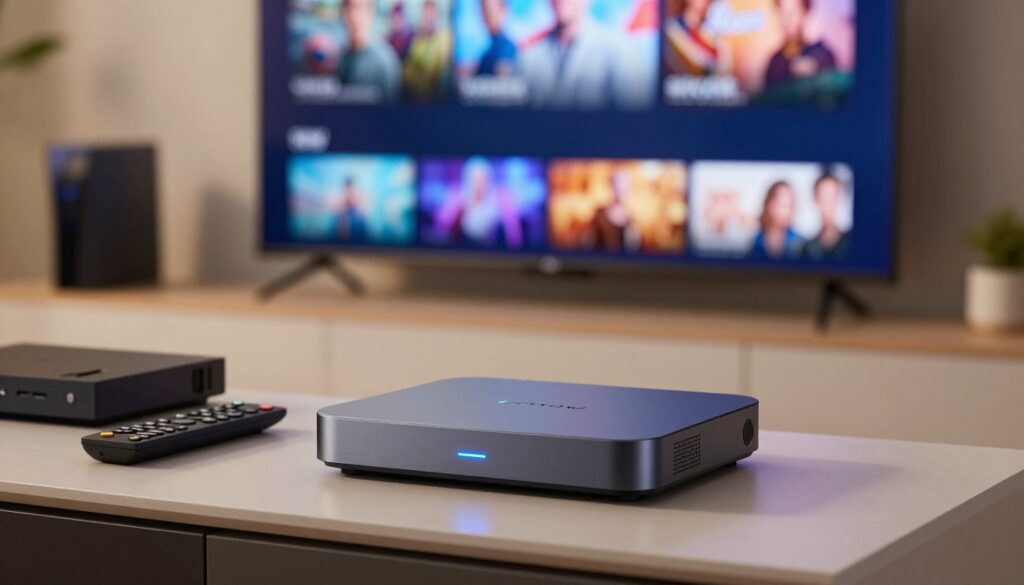
Do you find your favorite shows buffering right at the most exciting moment? Maintaining your home entertainment setup is essential for achieving the best streaming performance. Over time, digital devices can accumulate temporary data that slows down your connection and ruins your viewing experience.
A simple reset is often the most effective way to clear these technical hiccups. By choosing to reset IPTV hardware, you can quickly restore your device to peak operational status. This process eliminates minor glitches without the need for expensive professional support.
Improving your streaming quality ensures that you enjoy crisp, uninterrupted content every single day. Whether you are dealing with lag or frozen screens, this guide will help you navigate the necessary steps to get back on track. Let’s explore how to refresh your IPTV Box and reclaim your high-definition entertainment.
Key Takeaways
- Regular maintenance prevents common buffering and lag issues.
- A system reset clears temporary data that hinders device speed.
- You can easily restore your hardware without professional technical help.
- Optimizing your connection leads to a smoother, high-definition experience.
- Simple troubleshooting steps save time and improve overall reliability.
Understanding Why Your IPTV Box Needs a Reset
Understanding the technical health of your hardware is the first step toward a better viewing experience. Over time, even the most reliable IPTV Box can begin to show signs of wear in its software performance. Recognizing these early warning signs helps you decide when a system refresh is necessary to maintain high streaming quality.

Common Symptoms of Performance Degradation
The most frequent indicator that your device is struggling is the sudden onset of buffering issues during live broadcasts. You might notice that the video quality drops unexpectedly or the interface becomes unresponsive to your remote control commands. These glitches often suggest that the system resources are being overwhelmed by background tasks.
The Role of Cache and Temporary Files in Streaming
Every time you open an application, your device stores small bits of data to help it load faster next time. While this is helpful initially, an accumulation of these files can eventually lead to system instability. Regular cache clearing is a vital maintenance step that frees up memory and allows your device to process video streams more efficiently.
Why Network Congestion Affects US Streaming Quality
In the United States, high levels of network congestion often occur during peak evening hours when many households are online simultaneously. This traffic jam on your local internet service provider’s network can cause significant delays in data delivery. When your connection is unstable, your device may struggle to maintain a consistent stream, leading to the dreaded spinning wheel of death.
| Symptom | Primary Cause | Recommended Action |
|---|---|---|
| Frequent Buffering | Network Congestion | Check Connection |
| Interface Lag | Full System Cache | Cache Clearing |
| App Crashes | Corrupted Data | System Reset |
Preparing Your Equipment for a Successful Reset
A little bit of planning goes a long way when you are preparing to refresh your home entertainment setup. Taking the time to organize your information before you begin ensures that your IPTV Box returns to its peak performance without any unnecessary stress or data loss.

Gathering Necessary Credentials and Account Information
Before you initiate any reset, you must have your service details ready. Many users forget that a factory reset will wipe all saved login information from their streaming device.
- Locate your IPTV service provider username and password.
- Keep your portal URL or server address handy.
- Ensure you have access to your registered email account for any potential verification codes.
Backing Up Custom Settings and Favorite Channels
If you have spent hours curating your favorite channels, you certainly do not want to lose them. Most modern systems allow you to export your settings to an external USB drive or a cloud account.
Take a moment to manually document your most-watched channels if an automated backup is not available. This simple step guarantees that you can quickly restore your personalized viewing experience once the IPTV Box is back online.
Ensuring Stable Power Supply During the Process
The most critical part of any reset is maintaining a consistent flow of electricity. If your streaming device loses power while it is overwriting its firmware, you risk causing permanent damage to the internal software.
Always plug your unit directly into a wall outlet or a reliable surge protector during this procedure. Avoid using power strips that are prone to accidental disconnection, as a stable power supply is the best way to ensure a successful and safe reset.
Performing a Soft Reset to Resolve Minor Glitches
When your streaming experience starts to lag, a simple soft reset is often the best first step. This process allows your IPTV Box to clear out temporary memory errors that frequently lead to frustrating buffering issues. By performing this action, you can restore smooth playback without needing to erase your saved preferences or account details.

Power Cycling the Device Safely
The most effective way to initiate a reset IPTV procedure is through safe power cycling. Start by turning off your device using the remote control, then physically unplug the power cable from the wall outlet. Wait at least thirty seconds to ensure all capacitors have fully discharged before plugging the unit back in.
This brief pause allows the hardware to flush out transient data that might be causing system instability. Once you reconnect the power, allow the device a full minute to complete its boot sequence. This simple power cycling method often resolves minor connectivity hiccups instantly.
Clearing the System Cache via Settings
If performance remains sluggish, you should consider cache clearing to free up vital system resources. Navigate to the “Settings” or “Apps” menu on your device interface to locate the specific application you are using. Within the app information screen, you will typically find an option labeled “Clear Cache.”
Performing this task removes temporary files that accumulate over time during regular use. It is a safe operation that does not delete your login credentials or favorite channel lists. Regular maintenance of this type keeps your system running at peak efficiency.
Restarting the IPTV Application
Sometimes, the issue is isolated to the software rather than the hardware itself. Simply exiting the application and launching it again can force a fresh connection to the server. If the app remains unresponsive, you may need to force-stop it through the system settings before reopening it.
| Reset Type | Primary Benefit | Data Impact |
|---|---|---|
| Soft Reset | Fixes minor glitches | None |
| App Restart | Refreshes software | None |
| Cache Clear | Improves speed | Minimal |
Executing a Factory Reset on Your IPTV Box
A factory reset serves as the definitive method to return your IPTV Box to its pristine, out-of-the-box configuration. When minor troubleshooting steps fail to resolve persistent performance issues, this process clears all user data and restores the original system files. It is the most effective way to eliminate deep-seated software glitches that accumulate over time.
Accessing the System Recovery Menu
Most modern streaming devices feature a hidden system recovery interface designed for advanced maintenance. To access this menu, you typically need to hold a physical reset button while powering on the device. This button is often tucked inside a tiny pinhole on the back or bottom of the unit.
“Performing a full system wipe is a powerful tool, but always remember that this action will permanently erase your personalized apps and login credentials.”
Navigating the Reset Options for Android-Based Boxes
If you are using an Android TV box, the interface usually presents a text-based menu controlled by your remote or a connected keyboard. You must navigate to the option labeled “Wipe data/factory reset” using the directional keys. Once selected, confirm your choice to initiate the reset IPTV process, which may take several minutes to complete.
The following table outlines the common differences between standard reset methods for various hardware types:
| Device Type | Access Method | Primary Action |
|---|---|---|
| Android TV Box | Pinhole Button | Wipe Data/Cache |
| Proprietary Box | Menu Settings | System Restore |
| Hybrid Receiver | Remote Sequence | Factory Default |
Handling Proprietary Firmware Reset Procedures
Some specialized hardware does not follow standard Android conventions and may require unique steps to reset IPTV functionality. You might need to navigate through the main settings menu to find a “System Restore” or “Firmware Recovery” option. Always consult the manufacturer’s documentation if your Android TV box or proprietary unit does not respond to the standard pinhole method.
After the process finishes, your device will reboot into its initial setup screen. This ensures that your IPTV Box is ready for a fresh configuration, free from the corrupted files that previously hindered your streaming experience.
Optimizing Network Settings for US Internet Providers
Your streaming experience depends heavily on how your home network communicates with US internet providers. When you notice frequent buffering, the issue often lies in how your device handles data requests. By fine-tuning your network configuration, you can significantly improve your overall connection speed and reliability.
Configuring DNS Settings for Faster Resolution
Most users rely on the default DNS servers provided by their ISP, which can become slow during peak hours. Changing these to public alternatives like Google DNS or Cloudflare can help bypass network congestion. This simple adjustment often leads to faster server resolution and reduced latency for your IPTV Box.
Switching Between 2.4GHz and 5GHz Wi-Fi Bands
Residential environments are often crowded with signals that interfere with Wi-Fi stability. If you are currently using the 2.4GHz band, you might experience drops due to interference from other household appliances. Switching to the 5GHz band provides a cleaner, faster channel that is better suited for high-definition video streaming.
Testing Connection Stability with Ethernet Cables
While wireless options are convenient, a physical Ethernet connection remains the gold standard for performance. Plugging your device directly into your router eliminates the variables that cause signal drops. This setup ensures that your IPTV Box receives a consistent stream without the interference common in wireless environments.
| Connection Type | Stability Level | Best For |
|---|---|---|
| Ethernet Cable | Excellent | 4K Streaming |
| 5GHz Wi-Fi | Good | General HD Viewing |
| 2.4GHz Wi-Fi | Fair | Basic Browsing |
Updating Firmware and Software for Peak Performance
You can unlock the full potential of your IPTV Box by staying on top of software updates. Keeping your system current is essential for maintaining peak streaming performance and ensuring long-term compatibility with modern apps. When your software is outdated, your device may struggle to process high-definition streams effectively.
Checking for Official Manufacturer Updates
Most manufacturers release a firmware update to patch security vulnerabilities and improve hardware communication. You should navigate to the “System” or “About” menu in your settings to check for available downloads. Always ensure your device is connected to a reliable power source before starting this process to prevent accidental shutdowns.
“Regular software maintenance is the single most effective way to extend the lifespan of your hardware and prevent common playback errors.”
— Digital Streaming Expert
Managing Application Versions for Compatibility
Using outdated applications on your streaming device often leads to crashes or buffering issues. It is important to visit your app store regularly to verify that all installed software is running the latest version. This practice prevents conflicts between the operating system and your favorite streaming services.
Removing Unnecessary Background Processes
Your IPTV Box often runs hidden tasks that consume valuable system memory. By closing unused apps and clearing cache files, you can reclaim resources and boost your overall streaming performance. A clean system environment allows your hardware to focus entirely on delivering high-quality video content without interruptions.
| Maintenance Task | Frequency | Primary Benefit |
|---|---|---|
| Firmware Update | Monthly | System Stability |
| App Updates | Weekly | Feature Compatibility |
| Clear Cache | Bi-Weekly | Faster Loading |
| Background Cleanup | Daily | Reduced Lag |
Troubleshooting Persistent Issues After a Reset
When a fresh start doesn’t fix your streaming woes, it is time to look beyond the device itself. Even after a successful factory reset, your IPTV box might still exhibit performance drops or connection errors. These persistent issues often stem from environmental factors or external network constraints that require a more targeted approach.
Identifying Hardware Overheating Problems
Hardware overheating is a common, yet often overlooked, cause of streaming instability. If your device feels hot to the touch or shuts down during long viewing sessions, it is likely struggling with thermal management. Proper airflow is essential for maintaining consistent performance.
Ensure your unit is placed on a hard, flat surface rather than a carpet or fabric. Avoid stacking other electronics on top of it, as this traps heat and leads to frame drops or sudden reboots. If the device remains hot, consider using a small external cooling fan to keep the internal components within a safe temperature range.
Addressing ISP Throttling and VPN Requirements
Many US internet providers implement traffic shaping, which can lead to ISP throttling during peak hours. This practice intentionally slows down high-bandwidth activities like high-definition video streaming. If you notice consistent buffering at specific times of the day, your connection speed might be restricted by your service provider.
Using a reliable VPN for streaming is an effective way to bypass these restrictions. By masking your traffic, a VPN prevents your provider from identifying and slowing down your video data. This simple step often restores smooth playback quality for users facing aggressive network management policies.
Technology is best when it brings people together, but it requires patience when the connection falters.
— Anonymous
When to Contact Your IPTV Service Provider
If you have ruled out hardware heat issues and network interference, the problem may lie with your account or the service itself. It is time to reach out to your provider when you experience persistent login failures or server-side errors that affect multiple devices. They can perform advanced account-level diagnostics that are impossible to handle from your end.
| Issue Type | Primary Cause | Recommended Action |
|---|---|---|
| Frequent Reboots | Hardware Overheating | Improve ventilation |
| Buffering at Night | ISP Throttling | Use a VPN |
| Login Errors | Account Status | Contact Provider |
Best Practices for Maintaining Your IPTV Box
Keeping your streaming hardware in top shape is the secret to a flawless entertainment experience. Consistent device maintenance is the most effective way to extend the lifespan of your equipment while ensuring that your favorite shows always play without interruption.
Establishing a Regular Maintenance Schedule
You should treat your hardware like any other computer in your home. We recommend setting up a simple routine that includes a full system reboot at least once a week to clear out temporary memory.
Performing periodic software audits is also a smart move. Check for updates regularly to ensure your system remains compatible with the latest streaming protocols, which directly supports consistent streaming performance.
Managing Storage Space to Prevent Lag
Many users forget that their streaming device has limited internal storage. When the drive becomes nearly full, the system often struggles to process data, leading to noticeable lag or unexpected application crashes.
Take a moment to review your installed apps and remove any that you no longer use. Clearing the cache for your primary streaming applications can also free up valuable space and help maintain Wi-Fi stability during high-traffic hours.
Protecting Your Device from Power Surges
Electrical spikes are a common cause of permanent damage to sensitive electronic components. Even a minor surge can fry the internal circuitry of your IPTV Box, rendering it useless overnight.
We strongly suggest plugging your equipment into a high-quality surge protector rather than directly into a wall outlet. This small investment provides a vital layer of safety, ensuring your IPTV Box remains protected against unpredictable power fluctuations.
By following these simple steps, you can enjoy reliable streaming performance for years to come. Proactive care is always better than waiting for a total system failure.
Conclusion
Consistent maintenance of your IPTV Box ensures a smooth entertainment experience across the United States. Taking charge of your hardware settings allows you to bypass common technical hurdles with ease.
Regular updates keep your device running at peak efficiency. You gain the power to stream high-definition content without interruptions by managing your system resources effectively.
Your commitment to proper configuration protects your investment for years to come. A well-maintained IPTV Box serves as the reliable heart of your home media setup.
Feel free to share your own tips for better streaming quality with other users in your community. Your feedback helps everyone get the most out of their technology.
Enjoy your favorite shows and movies with the peace of mind that comes from a perfectly tuned system. Happy streaming as you explore the vast world of digital entertainment.
FAQ
How often should I perform a reset on my IPTV Box to maintain optimal performance?
For most users in the United States, we recommend a simple soft reset or power cycle at least once a week. This helps clear out the system cache and temporary files that accumulate during heavy streaming sessions, ensuring your home entertainment setup remains snappy and responsive.
Will performing a factory reset delete my personalized channel lists and login credentials?
Yes, a factory reset will return your device—whether it is an NVIDIA Shield, Formuler, or BuzzTV box—to its original out-of-the-box state. To avoid frustration, always back up your custom settings and write down your service credentials before initiating a full system wipe.
Why does my streaming quality drop during evening hours on providers like Xfinity or Spectrum?
This is often due to network congestion or ISP throttling. During peak viewing times, many US internet providers may slow down high-bandwidth traffic. Using a VPN like ExpressVPN or NordVPN can often bypass these restrictions, while switching to a wired Ethernet connection provides the most stable signal.
How can I tell if my IPTV Box is experiencing hardware overheating?
Common symptoms of hardware overheating include sudden system reboots, frame drops, or the device feeling hot to the touch. To fix this, ensure your streaming hardware is in a well-ventilated area and try removing unnecessary background processes that put a strain on the processor.
Is there a difference between a soft reset and a factory reset?
Absolutely! A soft reset involves power cycling the device or restarting the IPTV application to fix minor glitches. A factory reset is a more thorough process accessed via the system recovery menu that reinstalls the firmware, which is usually reserved for persistent or complex system issues.
Should I use the 2.4GHz or 5GHz Wi-Fi band for my IPTV Box?
If your IPTV Box is close to your router, the 5GHz Wi-Fi band is superior because it offers faster speeds and less interference. However, if you are streaming from another room, the 2.4GHz band has a better range. For the absolute best results in high-definition, a physical Ethernet cable is always the “gold standard.”
How do I check for firmware updates on an Android-based streaming device?
Navigate to the Settings menu and look for “Device Preferences” or “About.” From there, you can select “System Update” to check for official manufacturer updates. Keeping your firmware current is essential for security patches and maintaining app compatibility.
Can a full storage drive cause my IPTV application to crash?
Yes, managing storage space is critical. When your internal memory is nearly full, the system struggles to manage temporary files, leading to significant lag and crashes. Regularly uninstalling unused apps and clearing the system cache will help maintain peak operational status.
What should I do if my IPTV Box still won’t work after a full reset?
If a reset doesn’t solve the problem, the issue might be at the account level. At this point, it is best to contact your IPTV service provider to ensure your subscription is active or to check if there are known server outages affecting your region in the USA.