Welcome to the exciting world of modern digital entertainment. Many households across the United States are discovering new ways to enjoy their favorite content by upgrading their home viewing experience.
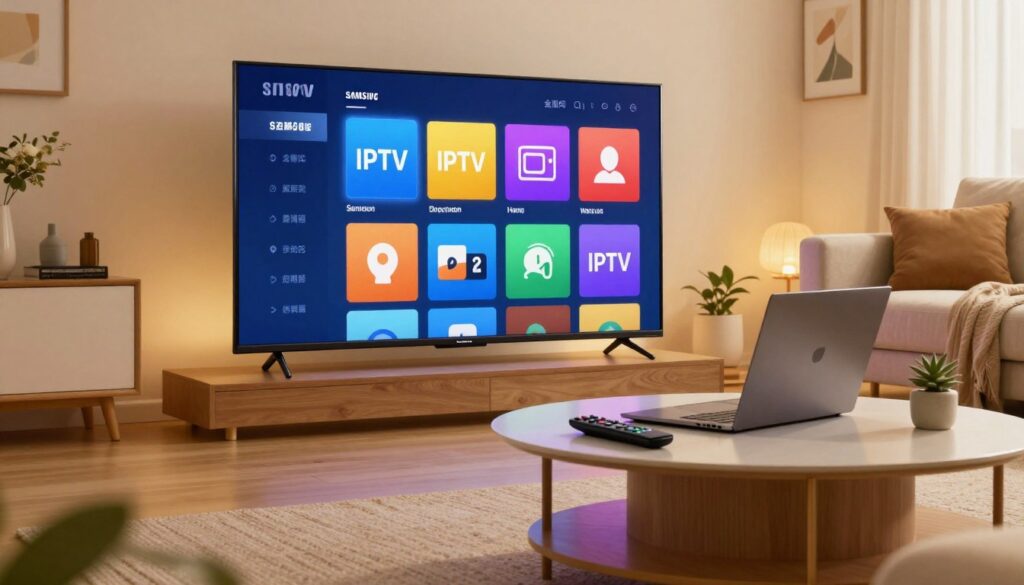
Learning how to set up IPTV on Samsung Smart TV platforms has become a popular choice for those seeking flexibility. This process allows you to turn your living room display into a truly versatile media center with just a few simple steps.
In this guide, we will walk you through the essential requirements and configuration methods needed for a smooth installation. By following these instructions, you will gain full control over your streaming library and enjoy a seamless interface tailored to your preferences.
Key Takeaways
- Understand the basic requirements for streaming setup in the United States.
- Learn how to transform your display into a powerful media hub.
- Follow a clear, step-by-step process for successful configuration.
- Discover the benefits of using modern streaming applications.
- Ensure your device is ready for a high-quality viewing experience.
Understanding IPTV Compatibility on Samsung Smart TVs
Understanding the software environment of your Samsung Smart TV is the first step toward a successful setup. Your television acts as a computer, and its ability to run specific software depends entirely on its internal architecture. Knowing these limitations helps you avoid frustration when trying to access your favorite content.

The Role of Tizen OS in App Availability
Most modern Samsung televisions run on Tizen OS, a proprietary platform designed for speed and efficiency. Because this system is closed-source, it only supports Tizen OS apps that have been vetted and approved by Samsung. This ensures a stable experience but limits the variety of software you can install directly from the store.
If an application is not available in the official Samsung Smart Hub, it is usually because it lacks compatibility with the Tizen framework. Developers must specifically code their software to meet Samsung’s strict security and performance standards. Consequently, users often find that popular open-source media players are not natively supported.
Distinguishing Between Official and Third-Party Apps
It is important to recognize the difference between official store applications and third-party solutions. Official apps are verified for safety and performance, while third-party options often require manual installation methods. Using Tizen OS apps from the official store is always the safest route for your device.
| Feature | Official Apps | Third-Party Apps |
|---|---|---|
| Installation | Samsung Smart Hub | External Sideloading |
| Security | High (Verified) | Variable (Riskier) |
| Updates | Automatic | Manual |
| Support | Official Developer | Community Based |
Legal Considerations for IPTV Usage in the United States
When you decide to use IPTV on Samsung Smart TV, you must prioritize compliance with local laws. Streaming IPTV legally in the United States requires that you only access content through authorized providers who hold the necessary distribution rights. Unauthorized services often host copyrighted material without permission, which can lead to significant legal risks for the end user.
Always verify that your service provider is legitimate before entering your credentials. By streaming IPTV legally, you protect your personal data and ensure that your viewing habits remain private and secure. Staying informed about copyright regulations is a key part of being a responsible digital consumer.
Preparing Your Samsung Smart TV for IPTV Installation
A successful installation begins long before you download your first application. To enjoy a seamless IPTV on Samsung Smart TV experience, you must ensure your hardware is properly configured. Taking these initial steps will save you time and prevent technical headaches later on.

Checking Your Internet Connection Stability
Streaming high-definition content requires a consistent and fast internet connection. If your network fluctuates, you will likely experience buffering or poor video quality during your favorite shows.
We recommend the following steps to verify your connection:
- Use a wired Ethernet cable whenever possible for the most stable signal.
- If using Wi-Fi, ensure your router is placed near the television without physical obstructions.
- Run a speed test through your TV’s browser to confirm you meet the minimum bandwidth requirements for streaming.
Updating Tizen OS Firmware to the Latest Version
Your television relies on its operating system to run various Tizen OS apps efficiently. Performing regular IPTV firmware updates is essential to maintain compatibility with the latest software releases.
“Keeping your firmware current is the single most effective way to ensure your television remains secure and compatible with modern streaming services.”
To check for updates, navigate to your TV’s Settings menu, select Support, and choose Software Update. If an update is available, allow the system to install it completely before proceeding with any new app installations.
Creating and Signing Into Your Samsung Account
Completing your Samsung Smart TV setup is not finished until you have signed into your personal account. A valid Samsung account login is required to access the Smart Hub, which acts as the gateway for downloading and managing your applications.
If you do not have an account, you can create one directly through the TV settings or via a web browser on your smartphone. Once signed in, you will have full access to the app store, allowing you to customize your viewing experience with ease.
Installing IPTV Smarters Pro via the Official App Store
You can quickly transform your home entertainment setup by adding a versatile media player directly to your device. A smooth Samsung Smart TV setup allows you to access a vast library of content with just a few clicks. By utilizing the native store, you ensure that your software remains compatible and easy to manage.

Navigating the Samsung Smart Hub Interface
To begin, press the “Home” button on your remote control to open the Samsung Smart Hub. This central dashboard acts as the gateway to all your installed applications and settings. You will see a ribbon of icons at the bottom of your screen, which you can scroll through to find the “Apps” section.
Once you select the “Apps” icon, you will be taken to the main store interface. This area is organized by categories, making it simple to browse through popular downloads or search for specific tools. Efficiency is key when managing your digital library, so take a moment to familiarize yourself with the layout.
Searching for IPTV Smarters Pro
Locate the magnifying glass icon in the top right corner of the screen to initiate a search. Type in the name of the application to begin the IPTV Smarters Pro installation process. Once the icon appears in the results, select it to view the app details page.
“Technology is best when it brings people together and simplifies the way we consume our favorite media.”
Click the “Install” or “Add to Home” button to download the software to your television. The system will automatically handle the installation, and you will see a progress bar indicating when the process is complete. After the download finishes, you can launch the app directly from the store or find it in your main app list.
Configuring Your IPTV Subscription Credentials
Upon opening the application for the first time, you will be prompted to enter your login details. You will typically need to provide the following information provided by your service provider:
- Playlist Name: A custom label for your subscription.
- Username: Your unique account identifier.
- Password: The secure key for your service.
- Server URL: The address provided by your provider to connect to their stream.
Double-check that all characters are entered correctly, as even a small typo can prevent a successful connection. Once you have saved these credentials, the app will load your channel list and EPG data. You are now ready to enjoy your content with a seamless and optimized viewing experience.
Setting Up TiviMate on Samsung Smart TVs
Setting up TiviMate on your Samsung Smart TV requires a few extra steps, but the results are well worth the effort. This TiviMate guide will help you navigate the process of bringing this powerful player to your living room. Many users find that the native app store options are limited, making this alternative a highly desirable upgrade.
Why TiviMate is a Popular Choice for IPTV Users
TiviMate is widely regarded as a top-tier player due to its clean, modern interface and robust feature set. It offers a familiar cable-like experience that many users find intuitive and easy to navigate. Customization is at the heart of the experience, allowing you to organize channels and favorites exactly how you prefer.
Beyond the visual appeal, the app provides advanced features like multi-view, recording capabilities, and extensive search functions. These tools transform a standard streaming setup into a professional-grade media center. It is the go-to choice for those who want full control over their viewing habits.
Sideloading Methods for Non-Native Apps
Because TiviMate is not natively available in the Samsung Smart Hub, you must use sideloading IPTV apps to get it running. Since Tizen OS is a closed system, this usually involves using an external streaming device like a Fire Stick or Android TV box connected to your HDMI port. You cannot install Android APK files directly onto the Tizen operating system.
By using an external device, you bypass the limitations of the native store. This method ensures that you can install any compatible application without restriction. It is the most reliable way to enjoy your preferred software on a Samsung display.
Managing M3U Playlists and EPG Sources
Once you have the application running, effective M3U playlist management becomes essential for a smooth experience. You will need to input your provider’s M3U URL and EPG (Electronic Program Guide) source directly into the app settings. Keeping these links accurate ensures that your channel guide remains updated and functional.
We recommend checking your sources periodically to avoid dead links or outdated information. Regular maintenance of your playlist data prevents buffering and ensures that you always have access to the latest channel listings. With these settings configured, your streaming experience will be both stable and highly organized.
Configuring OTT Navigator for Enhanced Viewing
For those who demand a highly personalized interface, completing the OTT Navigator setup is the perfect solution. This application is widely recognized for its deep customization options and robust performance, making it a favorite among power users who want more than just a standard media player.
Features and Benefits of OTT Navigator
OTT Navigator offers a unique approach to media consumption by allowing users to manage multiple playlists simultaneously. You can enjoy advanced filtering, which helps you sort through thousands of channels with ease. The application also supports high-quality stream rendering, ensuring that your favorite content looks crisp and clear on your Samsung display.
Step-by-Step Installation Process
Since this application is often not available directly in the official store, you will need to use a sideloading method. First, ensure your TV is connected to a reliable network and that you have enabled developer options if required. You can then use a downloader tool to fetch the official APK file and install it directly onto your device.
Customizing the Interface for Better Channel Management
Once the app is running, you can dive into the settings to refine your IPTV channel management. The interface allows you to create custom groups, hide unwanted categories, and assign specific logos to your channels for a cleaner look. Personalizing your dashboard ensures that your most-watched content is always just a click away.
By taking the time to finalize your OTT Navigator setup, you transform your television into a professional-grade media center. This level of control is what separates casual viewers from true enthusiasts who value efficiency and style in their daily streaming routine.
How to Install IPTV on Samsung Smart TV Using External Devices
If you find your television’s interface limiting, external streaming devices offer a powerful alternative for your media consumption. While native apps are convenient, they often lack the flexibility required for advanced IPTV configurations. By using dedicated hardware, you can bypass software restrictions and enjoy a more stable viewing environment.
Connecting Amazon Fire TV Stick to Samsung HDMI Ports
The Fire TV Stick IPTV setup is a popular choice because it runs on a highly compatible Android-based operating system. Simply plug the device into any available HDMI port on the back or side of your Samsung television. Once connected, switch your TV input to the corresponding HDMI source to begin the initial configuration.
After the device boots up, connect it to your home Wi-Fi network. You can then navigate to the app store to download your preferred IPTV player. This method provides a seamless experience that often outperforms the native Tizen OS for third-party applications.
Using Roku Streaming Devices for IPTV Access
Achieving Roku IPTV access is another excellent way to enhance your entertainment setup. Roku devices are known for their user-friendly interface and reliable performance. To get started, insert the device into your HDMI port and follow the on-screen prompts to link your account.
While Roku has specific policies regarding third-party apps, you can still utilize various IPTV services through supported media players available in the Roku Channel Store. This approach ensures that your streaming remains consistent and easy to manage for the whole family.
Benefits of Using External Hardware Over Native Apps
Choosing external hardware provides several distinct advantages over relying solely on your TV’s built-in software. These devices typically receive more frequent updates and offer better processing power for high-definition streams. You will likely notice faster navigation and fewer crashes when using a dedicated streaming stick.
| Feature | Native TV Apps | External Devices |
|---|---|---|
| Processing Speed | Moderate | High |
| App Compatibility | Limited | Extensive |
| Update Frequency | Slow | Frequent |
| Customization | Restricted | Advanced |
Ultimately, investing in a dedicated device is a smart move for any serious cord-cutter. It simplifies your setup while providing the reliability you need for daily viewing. Whether you choose a Fire TV Stick or a Roku, you will gain more control over your digital content.
Troubleshooting Common IPTV Installation Issues
If your television is not cooperating with your new streaming software, you are certainly not alone. Even the most advanced smart TVs can sometimes run into technical snags during the setup process. Mastering basic IPTV troubleshooting will help you get back to your favorite shows without unnecessary delay.
Resolving App Installation Failures
When an application fails to install, the first step is to check your available storage space. Samsung Smart TVs require a certain amount of internal memory to unpack and run new software effectively. If your storage is nearly full, try deleting unused apps to clear room for your new installation.
Another common culprit is a temporary glitch in the Smart Hub. You can often resolve this by performing a power cycle on your television. Simply unplug the power cord from the wall outlet for sixty seconds before plugging it back in to refresh the system cache.
Fixing Buffering and Connectivity Problems
Nothing ruins a movie night faster than constant interruptions. Effective IPTV buffering fixes often start with your home network configuration. Ensure your TV is connected to a stable 5GHz Wi-Fi signal or, ideally, a wired Ethernet connection for the best results.
If you still experience lag, try restarting your router to clear any network congestion. You should also check if other devices in your home are consuming excessive bandwidth. Limiting background downloads on computers or gaming consoles can significantly improve your streaming stability.
Addressing Login Errors and Authentication Issues
Sometimes, the issue lies with your subscription credentials rather than the hardware itself. Double-check that your username and password are entered correctly, as these fields are often case-sensitive. A simple typo is frequently the reason for an authentication failure.
If your credentials are correct but you still cannot log in, verify that your subscription is active and not expired. Occasionally, server-side maintenance can also cause temporary access issues. If the problem persists, reach out to your service provider to confirm that their servers are currently online and accepting connections.
Optimizing Your IPTV Experience for High-Quality Streaming
You can easily elevate your viewing experience by fine-tuning your device for better performance. Taking a few moments to adjust your settings ensures that you enjoy high-quality IPTV streaming without constant interruptions or technical glitches.
Adjusting Video Quality Settings
Most streaming applications allow you to manually select your video resolution. If you notice stuttering, try lowering the resolution from 4K to 1080p or 720p to see if the playback stabilizes.
Consistency is key when it comes to smooth playback. Many apps also feature an “Auto” setting, but locking in a specific resolution often prevents the player from constantly switching, which can cause annoying buffering.
Managing Cache and Storage on Your TV
Your Samsung Smart TV relies on internal storage to process streaming data efficiently. Over time, temporary files and app caches can accumulate, leading to sluggish performance and potential lag.
Navigate to your TV’s settings menu to clear the cache for your specific IPTV application regularly. This simple maintenance task frees up valuable system resources, allowing your device to handle high-definition streams with much greater ease.
Using a VPN to Protect Your Privacy and Improve Speeds
Using a VPN for IPTV is a smart way to enhance your digital security while watching content. A reliable service encrypts your traffic, preventing your internet service provider from throttling your connection based on your activity.
By masking your IP address, you can often bypass regional restrictions and enjoy a more stable connection. Always choose a provider that offers fast server speeds to ensure that your streaming remains crisp and responsive throughout your session.
Conclusion
Setting up your Samsung Smart TV for digital entertainment opens a world of possibilities for your home media center. You now possess the knowledge to navigate Tizen OS, manage your subscriptions, and optimize your network for a smooth viewing experience.
Consistent maintenance of your television firmware ensures that your apps run without interruption. Keeping your software current protects your device while providing access to the latest features from developers like IPTV Smarters Pro or TiviMate.
Prioritizing a secure connection remains vital for your digital privacy. Using a reliable VPN service keeps your data private while you stream content across the United States. This simple step adds a layer of safety to your daily entertainment habits.
Your journey into high-quality streaming starts with these foundational steps. Explore your favorite channels and enjoy the flexibility of a personalized television interface. Reach out to community forums if you encounter unique hardware challenges or need specific app updates.
FAQ
Why can’t I find certain IPTV apps like TiviMate in the Samsung App Store?
Most Samsung televisions run on Tizen OS, which has its own curated app store. While popular official apps like IPTV Smarters Pro are readily available, more specialized players like TiviMate or OTT Navigator may not be natively supported. In these cases, you might need to explore sideloading IPTV apps or using an external device like an Amazon Fire TV Stick to get the functionality you need.
Do I really need a Samsung account login to install IPTV apps?
Yes, having an active Samsung account login is a requirement for accessing the Samsung Smart Hub and downloading any software. Setting this up is a standard part of the Samsung Smart TV setup process, and it ensures your apps stay updated with the latest IPTV firmware updates for better security and performance.
How can I fix constant buffering while watching my favorite channels?
To keep your stream smooth, start by checking your internet stability. If your connection is strong but lag persists, try some common IPTV buffering fixes, such as clearing the cache and storage on your TV. Additionally, using a VPN for IPTV, like ExpressVPN or NordVPN, can help prevent ISP throttling, which is a frequent cause of lag in the United States.
Is it difficult to set up an M3U playlist on a Samsung TV?
Not at all! Once you have completed your IPTV Smarters Pro installation, the app will prompt you to enter your subscription credentials. You simply need to input your M3U playlist URL and your EPG sources link provided by your service provider. This will automatically populate your channel list and program guide for a seamless viewing experience.
Can I use a Roku device for IPTV if I don’t want to use the native Samsung apps?
Absolutely. Many users prefer Roku IPTV access or using an Amazon Fire TV Stick because these external hardware options often offer a faster interface and more app variety. Simply plug the device into one of your Samsung HDMI ports, switch the input, and you can enjoy a highly customizable streaming environment beyond the built-in software.
Is using IPTV legal in the United States?
Using IPTV is perfectly legal as long as you are subscribed to a legitimate service that owns the rights to the content it broadcasts. To stay compliant with local laws, we recommend sticking to official store applications and verified providers. Always be mindful of the legal considerations regarding third-party apps that may offer unlicensed content.
How do I improve the video quality of my IPTV streams?
To optimize your experience, navigate to the settings within your chosen player—such as the OTT Navigator setup—and adjust the video quality settings to match your internet speed. Ensuring your Tizen OS is updated to the latest version also helps the hardware decode high-definition streams more efficiently, providing a crisp and clear picture.