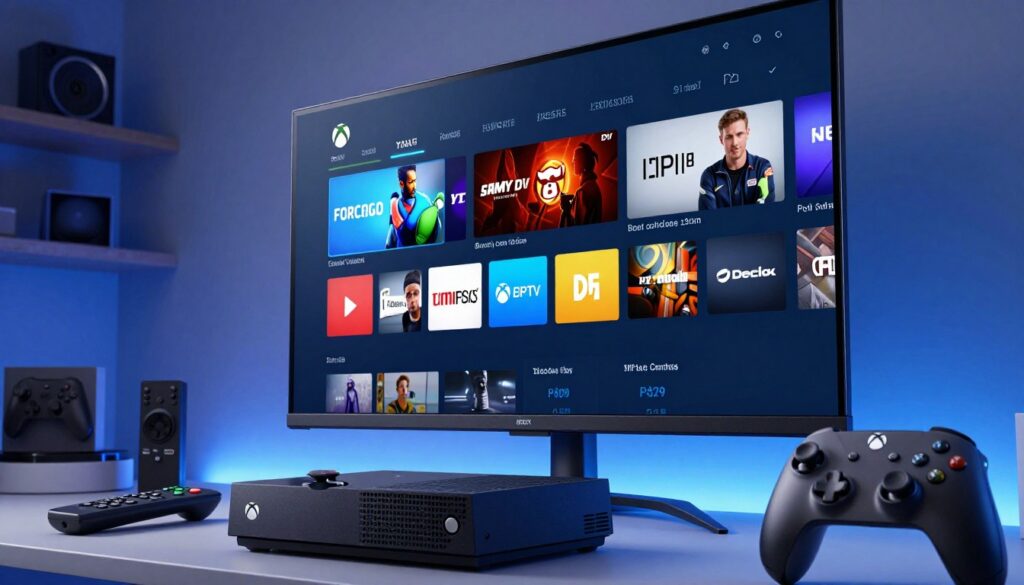
Are you tired of juggling multiple remotes just to watch your favorite shows? Many households in the United States are now ditching traditional cable for more flexible digital alternatives. Setting up IPTV on Xbox is a fantastic way to consolidate your entertainment setup into one powerful device.
By turning your gaming console into a media hub, you gain access to a world of content without needing extra hardware. This transition makes live TV streaming incredibly simple and efficient for every member of the family.
Whether you want to catch the big game or follow your favorite series, this method offers a seamless experience. Learning how to configure live TV streaming ensures you never miss a moment of the action. Discovering how to use IPTV on Xbox will change the way you enjoy home entertainment forever.
Key Takeaways
- Consolidate your gaming and media devices into one central hub.
- Enjoy a seamless transition from expensive cable packages to digital solutions.
- Access a wide variety of global channels directly through your console.
- Improve your home entertainment setup with minimal extra hardware.
- Follow simple steps to unlock advanced viewing capabilities today.
Understanding IPTV Compatibility on Xbox Consoles
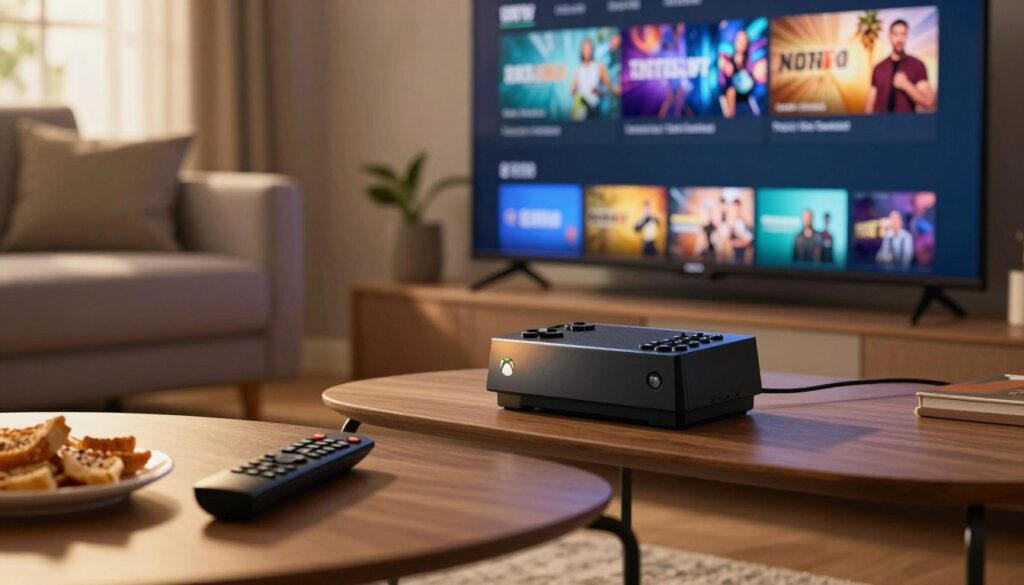
Exploring the world of digital television on your Xbox requires a clear understanding of how the system processes media. While your console serves as a powerful entertainment hub, it does not come with built-in tools to decode live broadcast streams directly. Instead, you must utilize specific software to bridge the gap between your console and your preferred content.
The Role of Third-Party Applications
Because the console lacks native support, IPTV player apps become essential tools for any user. These applications act as a gateway, allowing your Xbox to interpret external stream links and display them on your screen. By installing these programs, you transform your gaming device into a versatile media center capable of handling various broadcast formats.
These applications are designed to manage playlists and provide a user-friendly interface for your streams. They effectively translate complex data streams into a format that the Xbox operating system can render smoothly. Without these third-party solutions, accessing your favorite channels would be impossible on the platform.
Why Xbox Does Not Support Native IPTV Apps
The Xbox operating system is primarily optimized for high-performance gaming and interactive media. Microsoft focuses on maintaining a streamlined environment to ensure that system resources remain dedicated to rendering graphics and maintaining low latency. Consequently, the console does not include native support for digital television protocols, as these require constant background processing that could interfere with gaming performance.
By keeping the core system lean, the console avoids the bloat associated with traditional cable hardware. Users who want to expand their viewing options must rely on IPTV player apps that operate within the sandbox of the Microsoft Store. This approach keeps the main system secure while still offering the flexibility to add custom media features.
| Feature | Native Xbox Apps | Third-Party IPTV Apps |
|---|---|---|
| Live Broadcast Support | Limited/None | Full Support |
| System Resource Usage | Optimized | Variable |
| Custom Playlist Access | Not Available | Fully Supported |
| Installation Source | Microsoft Store | Microsoft Store |
Prerequisites for Setting Up IPTV on Your Xbox
A successful Xbox console setup depends entirely on the foundation you build before you even open an application. Taking the time to verify your technical environment ensures that your transition to digital entertainment remains smooth and frustration-free. By addressing these core requirements early, you avoid common pitfalls that often plague new users.

Checking Your Internet Connection Speed
High-definition live TV streaming demands a consistent and robust internet connection. If your bandwidth is too low, you will likely encounter frequent buffering, pixelated images, or sudden disconnects during your favorite programs. We recommend running a speed test directly through your console settings to confirm your current performance.
To ensure a high-quality experience, keep these network guidelines in mind:
- Minimum Speed: Aim for at least 15-25 Mbps for stable HD streaming.
- Latency: Keep your ping under 50ms to prevent lag during live broadcasts.
- Stability: A wired Ethernet connection is always superior to Wi-Fi for consistent data delivery.
Creating a Reliable IPTV Subscription Account
Beyond your hardware, the quality of your service provider plays a massive role in your overall satisfaction. Not all services are created equal, and choosing a reputable provider is essential for maintaining access to a wide variety of channels. A reliable subscription ensures that your live TV streaming remains active and updated with the latest content.
When selecting a provider for your Xbox console setup, look for these key indicators of quality:
- Customer Support: Reputable services offer responsive help desks for technical issues.
- Server Uptime: Look for providers that guarantee high availability and minimal downtime.
- Content Variety: Ensure the service offers the specific channels and regions you intend to watch.
Always prioritize security when signing up for these services. Using a strong, unique password and keeping your account details private will help protect your digital footprint while you enjoy your media.
Selecting the Right IPTV Player for Xbox
Selecting the ideal software is essential for smooth performance on your device. When you dive into the world of Xbox media streaming, the application you choose acts as the bridge between your content and your screen. A well-optimized tool ensures that your entertainment remains fluid and responsive.

Evaluating User-Friendly Interfaces
Navigating through hundreds of channels using a game controller can be frustrating if the interface is poorly designed. You should look for IPTV player apps that prioritize a clean, grid-based layout. These designs allow you to scroll through your library with minimal button presses.
A high-quality interface should feel intuitive, mirroring the look and feel of standard console menus. If the menu is cluttered or slow to respond, it will likely hinder your overall experience. Always test how quickly you can switch between live television and your saved favorites.
Features to Look for in an IPTV Client
Beyond the visual layout, the technical capabilities of your chosen client are vital. A robust application must support Electronic Program Guides (EPG) to keep your schedule organized. Without this feature, finding specific shows becomes a tedious guessing game.
Furthermore, look for software that allows for easy category management. Being able to sort content by genre or country significantly improves your daily usage. The following table outlines the critical features you should prioritize when evaluating your options.
| Feature | Importance | Benefit |
|---|---|---|
| EPG Support | High | Displays live show schedules |
| Category Sorting | Medium | Organizes channels by genre |
| Hardware Acceleration | High | Reduces buffering and lag |
| Custom Playlists | Medium | Allows personalized channel lists |
How to Install IPTV on Xbox Using MyIPTV Player
You can transform your gaming device into a versatile media center by following this guide. Using a dedicated application like MyIPTV Player allows you to organize your streams effectively. This Xbox console setup is straightforward and requires only a few minutes of your time.
Navigating the Microsoft Store on Your Console
To begin, power on your device and navigate to the home screen. Locate the Xbox app store icon, which is usually found in the main menu or your library. Once inside, use the search function to look for “MyIPTV Player.”
Ensure you select the official version to avoid compatibility issues. The interface is designed to be intuitive, making it simple to find the software you need for your IPTV on Xbox experience.
Downloading and Launching the Application
After selecting the app, click the “Get” or “Install” button to start the download. The progress will be visible in your “My Games & Apps” section. Once the installation finishes, launch the application directly from your dashboard.
The first time you open the player, it may ask for basic permissions. Granting these allows the software to function correctly within your Xbox console setup. You are now ready to configure your stream sources.
Adding Your Remote Channel List
Inside the app settings, look for the section labeled “Remote Channel Lists.” Here, you will input the M3U URL provided by your service provider. This step is essential for syncing your IPTV on Xbox content to the player.
After entering the URL, save your changes and return to the main menu. The application will automatically fetch your channels from the Xbox app store downloaded client. Refer to the table below for a quick summary of the installation process.
| Step | Action | Estimated Time |
|---|---|---|
| 1 | Open Store | 30 Seconds |
| 2 | Download App | 2 Minutes |
| 3 | Add M3U URL | 1 Minute |
| 4 | Sync Channels | 30 Seconds |
Configuring Your M3U Playlist for Seamless Streaming
Proper configuration is the foundation of a reliable IPTV experience on your console. When you take the time to set up your player correctly, you ensure that your streams remain stable and high-quality. Effective IPTV configuration prevents common errors and helps your device communicate better with your service provider.
Understanding M3U and EPG URL Formats
An M3U file acts as a digital map for your media player, telling it exactly where to find your channels. Most providers supply this as a direct URL link that updates automatically. You should also look for an EPG URL, which stands for Electronic Program Guide, to see your current and upcoming show schedules.
Using a reliable M3U playlist guide is essential to ensure your player interprets these links correctly. Always verify that your URLs are formatted as standard web addresses starting with http or https. If these links are broken or typed incorrectly, your player will fail to load your channel list.
Inputting Credentials into the Player Settings
Once you have your links ready, you must enter them into your player’s settings menu. Most applications require you to provide a unique username and password provided by your subscription service. Security is paramount, so ensure you are entering these details into a trusted and reputable application.
Double-check your entries for any typos, as even a single missing character can prevent a successful connection. After saving your credentials, the player will typically attempt to sync with the server. If the connection is successful, you will see your channel list populate within a few moments.
Managing Channel Categories and Favorites
After your channels load, you might find the list overwhelming due to the sheer volume of content. Most players allow you to sort channels into logical categories like Sports, News, or Entertainment. Taking the time to organize these groups makes navigating your library much faster.
You should also utilize the “Favorites” feature to pin your most-watched channels to the top of your menu. This simple IPTV configuration step saves you from scrolling through hundreds of options every time you want to watch something. Keeping your interface clean and organized will significantly improve your daily viewing experience.
Alternative Methods for Accessing IPTV Content
If you prefer to avoid installing extra software, there are still several ways to enjoy your favorite programs on your console. Many users seek a streamlined experience that avoids the need for complex configurations or additional downloads. By leveraging existing tools, you can maintain a clean system while still enjoying high-quality live TV streaming.
Using Web Browser-Based IPTV Services
Your Xbox comes equipped with a fully functional web browser that can act as a gateway to your favorite digital television portals. Simply navigate to the browser app and enter the URL of your preferred service provider. This method is particularly useful for platforms that offer a web-based player interface.
Once the page loads, you can often bookmark the site for quick access in the future. Keep in mind that browser performance may vary depending on the complexity of the website’s video player. For the best results, ensure your browser is updated to the latest version to maintain compatibility with modern web standards.
Casting Content from Mobile Devices to Xbox
Another flexible approach involves casting content directly from your smartphone or tablet to your console. This technique allows you to use your mobile device as a remote control while the console handles the heavy lifting of video playback. It is a fantastic way to manage your digital television library without needing to navigate menus on the TV screen.
To get started, ensure both your mobile device and your console are connected to the same local network. Many modern apps support casting protocols that recognize your Xbox as a valid playback destination. This setup provides a seamless transition for those who prioritize convenience and ease of use during their daily live TV streaming sessions.
Optimizing Your Network Settings for High-Quality Playback
Achieving a smooth streaming experience on your console depends heavily on your network configuration. When you watch live broadcasts, even minor fluctuations in your connection can lead to frustrating interruptions. By fine-tuning your Xbox internet settings, you can ensure that your device maintains a consistent and reliable stream.
Switching Between Wired and Wireless Connections
While Wi-Fi offers convenience, it is often susceptible to interference from other household devices. A wired Ethernet connection is almost always the superior choice for high-definition video. It provides a direct path to your router, which significantly improves your overall streaming quality by minimizing packet loss.
If you must use a wireless setup, try to position your console closer to the router to reduce signal degradation. However, for the most stable performance during live events, plugging an Ethernet cable directly into your console remains the gold standard. This simple change can prevent the sudden drops in resolution that often plague wireless users.
Adjusting DNS Settings for Better Latency
Your Domain Name System (DNS) settings act as a phonebook for the internet, translating web addresses into IP addresses. By switching to a faster, public DNS provider, you can often reduce network latency and improve the initial response time of your applications. This adjustment helps your console find and load stream data more efficiently.
To update these settings, navigate to your network configuration menu and select manual DNS entry. Many users find that using reliable public servers helps stabilize their connection and keeps their network latency low. Taking these steps ensures that your hardware is optimized for the best possible performance, allowing you to enjoy your content without constant buffering.
Troubleshooting Common Connection and Buffering Issues
Even the most robust streaming setups can occasionally run into frustrating playback hurdles. When you encounter sudden stuttering or frozen screens, your IPTV configuration might simply need a quick refresh to get back on track.
Clearing Cache and Restarting the Application
The first step in resolving playback errors is to clear the temporary data stored by your player. Over time, cached files can become corrupted, leading to performance degradation or unexpected crashes.
To fix this, navigate to your console settings and manage your installed applications. Force-closing the app and clearing its cache often resolves minor glitches without requiring a full reinstallation.
Identifying Server-Side Versus Client-Side Problems
It is important to determine if the issue stems from your home environment or the service provider. If you notice that your Xbox internet settings are stable but the stream still fails, the problem is likely on the server side.
You can test this by switching to a different network or checking if other streaming apps function correctly. High network latency often points to local congestion, whereas a total server outage will affect all users regardless of their connection quality.
If the issue persists across multiple channels, contacting your provider is the best course of action. They can confirm if there is a known outage or if your account requires a manual reset on their end.
Legal Considerations and Safety Tips for IPTV Users
Before you start streaming on your console, it is vital to consider the legal landscape of digital media. Following basic IPTV legal tips ensures that your entertainment setup remains both enjoyable and compliant with local regulations. Being informed helps you avoid potential pitfalls while you explore new content.
Understanding Copyright Laws in the United States
In the United States, copyright laws are strictly enforced to protect creators and distributors. It is essential to ensure that the content you access through your console comes from legitimate and authorized sources. Using unofficial streams can lead to unintended legal consequences for the end user.
Always verify that your service provider holds the necessary licenses to broadcast the media they offer. When you choose reputable platforms, you support the industry and keep your viewing experience secure. Respecting intellectual property is a fundamental part of being a responsible digital consumer.
The Importance of Using a VPN for Privacy
Protecting your digital footprint is a key part of a modern, responsible streaming experience. Many users choose to utilize a VPN for IPTV to encrypt their internet traffic and mask their IP address from third parties. This extra layer of security helps prevent your ISP from throttling your connection based on your streaming habits.
“In an era of constant connectivity, personal data privacy is not just a luxury; it is a necessity for every digital citizen.”
Beyond privacy, a reliable VPN can help you maintain consistent speeds by bypassing network congestion. If you are looking for effective IPTV legal tips, integrating a secure connection is often at the top of the list. It keeps your personal information safe while you enjoy your favorite shows on your Xbox.
| Safety Practice | Primary Benefit | Recommended Action |
|---|---|---|
| Source Verification | Legal Compliance | Check provider licenses |
| Data Encryption | Enhanced Privacy | Use a trusted VPN |
| Network Security | Reduced Buffering | Optimize DNS settings |
Enhancing Your Viewing Experience with Xbox Features
Your Xbox console is far more than just a gaming machine; it is a powerful hub for your home entertainment. By taking advantage of the system’s unique tools, you can refine your Xbox media streaming setup to better suit your personal preferences.
Utilizing Snap Mode and Multitasking
Modern consoles allow you to stay productive or entertained without needing to close your current application. You can easily keep an eye on your favorite shows while navigating menus or checking notifications.
This multitasking capability ensures that you never miss a moment of the action. It is a great way to maintain a seamless flow between your gaming sessions and your favorite video content.
Adjusting Audio and Video Output Settings
To achieve the best possible streaming quality, you should spend a few minutes fine-tuning your console’s display and sound output. Navigating to the settings menu allows you to match the resolution and refresh rate to your specific television or monitor.
You can also configure your audio settings to support surround sound systems or soundbars. Proper calibration makes a world of difference when you want to enjoy a cinematic experience right in your living room.
Taking the time to adjust these technical parameters will directly impact your overall streaming quality. When your hardware is perfectly synced with your display, you will notice sharper images and more immersive audio during every session.
Comparing IPTV Performance Across Xbox Series X and Xbox One
The leap in technology between console generations changes how you interact with digital content. While both devices serve as hubs for Xbox entertainment, the underlying hardware dictates the fluidity of your media experience. Understanding these differences helps you manage expectations when setting up your favorite streaming applications.
Processing Power and Loading Times
The Xbox Series X features a custom processor designed for high-speed data handling. This results in significantly faster application launch times and smoother navigation through complex channel lists. You will notice that menus load almost instantly, providing a seamless transition between different streams.
In contrast, the older Xbox One models rely on aging hardware that may struggle with high-definition streams. Users often experience longer wait times when buffering heavy M3U playlists or switching between channels. While these consoles still support Xbox entertainment, the performance gap becomes apparent during peak usage hours.
Hardware Limitations and Compatibility Differences
Hardware architecture plays a major role in how applications function on your console. The Series X utilizes advanced architecture that handles modern codecs with ease, ensuring high-quality playback without stuttering. Older consoles may lack the necessary overhead to process high-bitrate content efficiently, leading to occasional frame drops.
Compatibility also varies, as some newer apps are optimized specifically for the faster storage speeds found in the Series X. While most software remains cross-compatible, the overall stability is consistently higher on the newer hardware. Refer to the table below for a quick summary of how these devices compare in a real-world environment.
| Feature | Xbox Series X | Xbox One |
|---|---|---|
| App Launch Speed | Very Fast | Moderate |
| Menu Navigation | Fluid | Occasional Lag |
| 4K Streaming Support | Native | Limited |
| Overall Stability | High | Average |
Ultimately, your choice of hardware influences the reliability of your Xbox entertainment setup. Investing in a newer console provides a more robust platform for demanding media tasks. However, with proper network optimization, even older models can provide a satisfactory viewing experience for casual users.
Conclusion
Setting up your console for streaming requires attention to detail and a focus on network stability. You now possess the knowledge to manage your M3U playlist guide with confidence. These steps ensure your device remains a powerful hub for all your media needs.
Prioritizing a secure connection protects your privacy while you explore new content. Consistent maintenance of your software settings keeps your viewing experience smooth and reliable. Your commitment to these best practices guarantees a high-quality standard for your home media library.
You are ready to transform your living room into a center for premium Xbox entertainment. Explore your favorite channels and enjoy the flexibility of a custom streaming environment. Share your setup tips with friends to help them get the most out of their own gaming hardware.
FAQ
Does the Xbox console come with a built-in IPTV application?
No, the Xbox does not currently offer a native, first-party application for IPTV. However, you can easily bridge this gap by visiting the Microsoft Store on your console and downloading high-quality third-party players like MyIPTV Player or the highly versatile Kodi media center.
What are the minimum requirements to stream live TV on Xbox without lagging?
To enjoy a seamless high-definition or 4K streaming experience, we recommend a stable internet connection with a download speed of at least 25 Mbps. For the best results and to avoid buffering, using a wired Ethernet connection is always more reliable than a wireless Wi-Fi setup.
How do I link my subscription to the MyIPTV Player app?
After installing the app from the store, you will need to navigate to the settings and input your unique M3U playlist URL and EPG (Electronic Program Guide) link provided by your service provider. This allows the app to correctly load your channel categories and live schedules.
Is it necessary to use a VPN when streaming IPTV on my console?
While not strictly required for the app to function, using a VPN like ExpressVPN or NordVPN is a smart move for online privacy. It helps protect your data and ensures that your streaming habits remain private while complying with United States copyright laws.
Can I watch IPTV on my Xbox using a web browser instead of an app?
Yes! If you prefer not to download additional software, you can use the built-in Microsoft Edge browser on your Xbox Series X or Xbox One. Simply navigate to your IPTV provider’s web player portal to start watching your favorite shows directly.
Does the hardware of an Xbox Series X perform better than an Xbox One for IPTV?
While both consoles are capable, the Xbox Series X features significantly more processing power, leading to faster app loading times and a snappier interface. If you are using an older Xbox One, you may notice slightly longer wait times when refreshing your M3U playlist.
What should I do if my stream is constantly buffering or freezing?
First, try clearing the application cache and restarting your console. If that doesn’t help, you can try adjusting your DNS settings to a faster public server, such as Google DNS, to reduce latency and improve your overall connection response time.
Can I multitask and play games while watching IPTV on my Xbox?
While the old “Snap Mode” has been phased out, you can still utilize modern multitasking features and quick-switch capabilities. You can also fine-tune your audio and video output settings in the console dashboard to ensure your live TV stream sounds as good as your games.